How to Store eVisas Securely: Wallet Passes vs PDFs
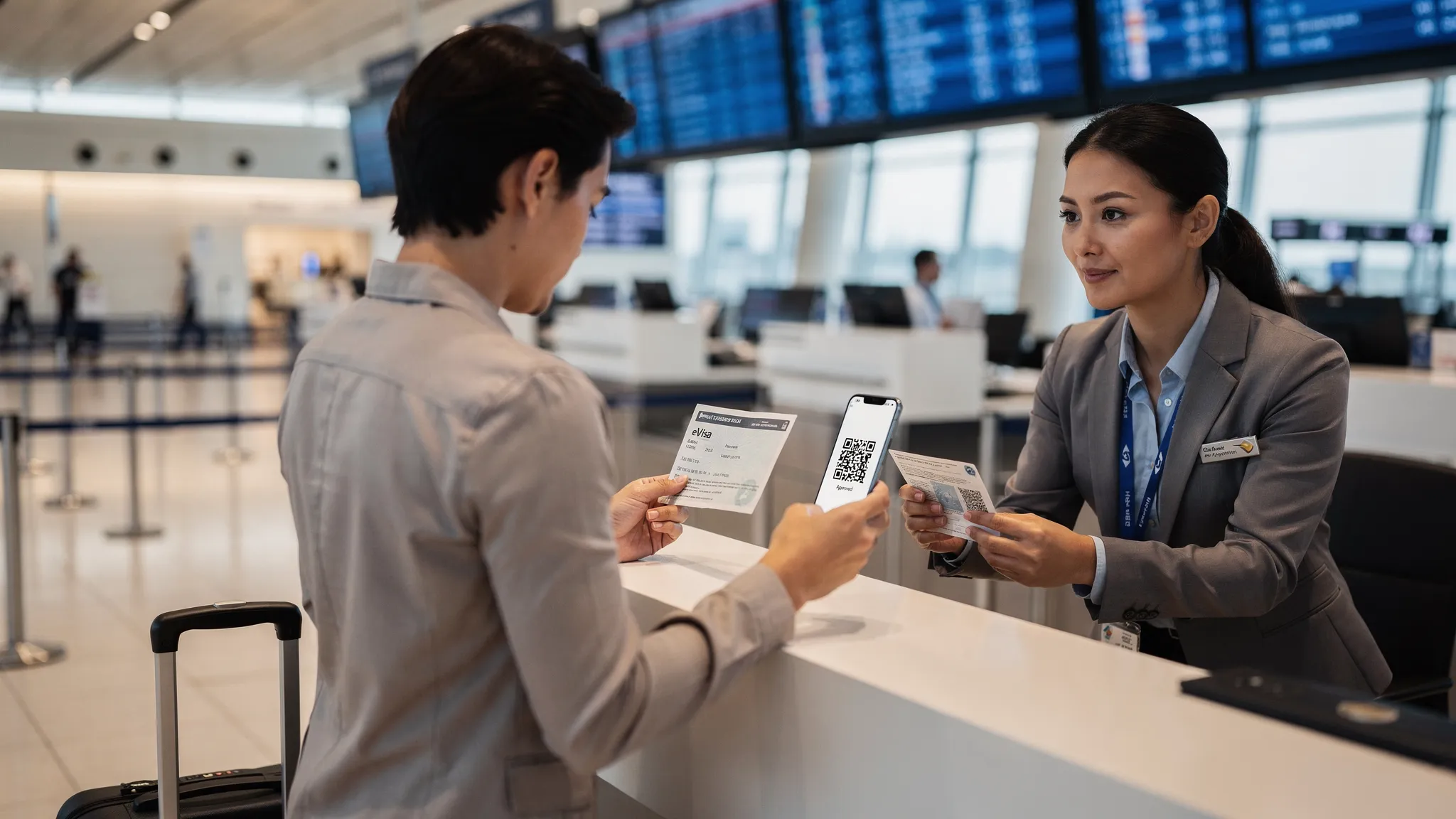
You can have a perfectly approved eVisa and still end up stressed at check-in if you cannot pull up the right file, the QR code will not load, or your phone dies right when an airline agent asks for proof. That is why “storage” is not just a convenience question, it is a risk-management decision.
Two formats dominate the real world today:
- A PDF (often the official grant notice or confirmation page).
- A wallet pass stored in Apple Wallet or Google Wallet (when available).
Below is a practical, security-first comparison of wallet passes vs PDFs, plus a simple setup that works for both frequent travelers and travel businesses.
What “store eVisas securely” actually means
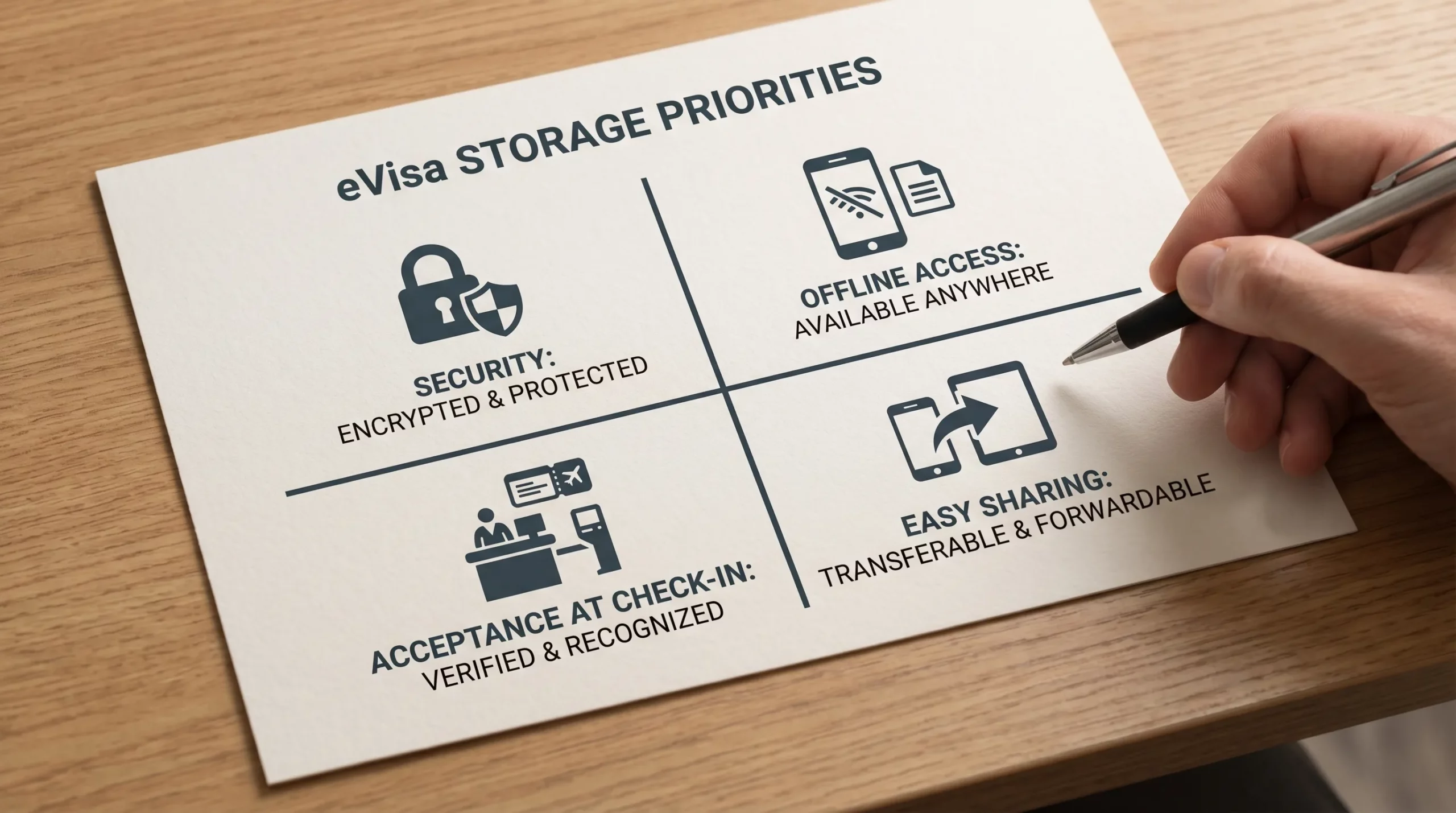
For travel documents, security is not only about encryption. A secure storage method needs to balance three outcomes:
- Confidentiality: your passport number, DOB, and reference IDs should not leak via careless sharing.
- Integrity: the document you present should be unaltered and match what the issuer granted.
- Availability: you must be able to access it quickly, even with low battery, poor internet, or a lost device.
In practice, the biggest eVisa pain points happen at airline check-in and boarding, not only at immigration. Airlines can be fined for carrying improperly documented passengers, so they tend to be strict.
If you want a broader primer on safe online handling (including scam avoidance), SimpleVisa’s guide on applying for travel visas online safely is a useful companion.
Wallet passes: what they are (and why people like them)
A wallet pass is a structured digital card (similar to a boarding pass) that lives inside Apple Wallet or Google Wallet. When eVisa issuers or travel platforms support it, it typically includes:
- Your name and a reference number
- A QR code or barcode
- Validity dates or key conditions
- Quick access from the lock screen (depending on device settings)
Security advantages of wallet passes
Wallets benefit from the phone’s built-in protections:
- Device encryption and secure unlock (PIN, Face ID, fingerprint)
- Reduced accidental sharing compared with emailing a PDF around
- Lower risk of “editing” (a pass is harder to casually manipulate than a PDF)
Apple and Google publish details on their platform security models if you want the technical background (see Apple Platform Security and Google security documentation).
Practical advantages of wallet passes
- Fast at the counter: the QR code is immediately scannable.
- Often usable offline: many passes remain accessible without data roaming.
- Less file chaos: you are not searching your downloads folder for “visa_final_FINAL2.pdf”.
Limitations to plan for
Wallet passes are excellent when supported, but they are not universal.
- Not every eVisa provides a wallet pass. Many governments still issue only PDFs.
- Some agents still ask for the PDF because it shows more detail (conditions, passport number, grant text).
- Not ideal for supporting documents. A wallet pass usually does not replace your hotel confirmation, onward ticket, or invitation letter if those are requested.
PDFs: why they remain the default
Most eVisa approvals are delivered as a PDF attachment or a downloadable confirmation page you save as a PDF. That is not going away soon because PDFs are:
- Universally readable on phones, tablets, and laptops
- Easy to print as a backup
- Often the “official-looking” version that check-in staff recognize
SimpleVisa also covers the real-world print question here: Do you need to print an electronic visa?.
Security risks of PDFs (that travelers underestimate)
PDFs create security problems mainly due to how people share and store them:
- Forwarding by email to multiple accounts and contacts
- Saving to unencrypted cloud folders (or shared family drives)
- Uploading to random “print shops” or hotel business centers
- Using screenshots (which often leak sensitive data into photo backups)
Also, PDFs are easy to modify. While altering a visa document is illegal and a very bad idea, the mere fact that PDFs are editable can lead to confusion: an airline agent may be suspicious if a file looks “off” or cropped.
Practical risks of PDFs
- Offline access depends on where you saved it (cloud-only storage fails in low connectivity).
- File naming and versioning issues are common when you reapply, extend, or update details.
Wallet passes vs PDFs: side-by-side comparison
Here is a decision-grade comparison you can use as a checklist.
| Criteria | Wallet pass | |
|---|---|---|
| Speed at check-in | Excellent (scan-ready) | Good (may require zooming/opening) |
| Works without internet | Often yes (device dependent) | Only if saved locally |
| Built-in device security | Strong (phone unlock, encryption) | Depends on where/how you store it |
| Shows full grant details | Sometimes limited | Usually complete |
| Easy to print | Not typical | Very easy |
| Easy to share with a companion | Not ideal (varies by platform) | Very easy (sometimes too easy) |
| Risk of accidental leakage | Lower | Higher (emailing, cloud sharing) |
| Universal availability | Limited (only when supported) | Universal |
Best takeaway for most travelers: use a wallet pass for speed, but keep the PDF as your authoritative backup.
The safest setup (recommended): one “fast” copy and two backups
If you want a setup that survives real travel conditions (dead phone, no Wi-Fi, lost luggage), use a layered approach.
For individual travelers
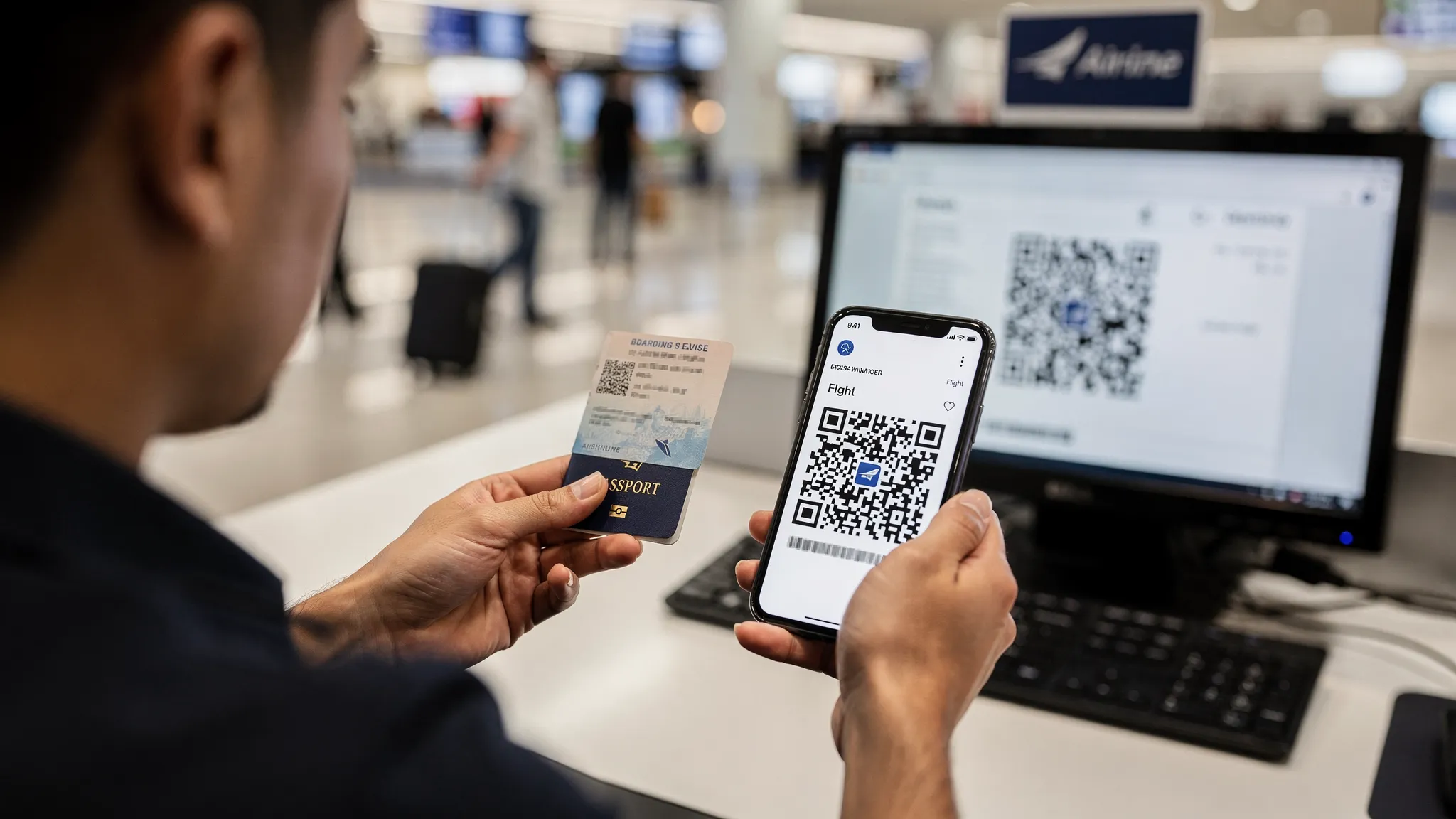
- Primary (fast): add the eVisa to Apple Wallet or Google Wallet if offered.
- Backup #1 (digital): save the official PDF locally on your phone (files app), not just in the cloud.
- Backup #2 (offline): carry one printed copy in your passport sleeve or travel folder.
If your destination is known for spotty connectivity, this layering matters even more. SimpleVisa’s tips for low-connectivity environments are helpful here: Using electronic visas in countries with limited internet access.
For families and group travel
- Keep a printed set for each traveler.
- Store PDFs in a shared, controlled location (for example, a secure folder with limited access) instead of sending them repeatedly in chat threads.
- Agree on one naming convention, such as
LASTNAME_Firstname_Destination_eVisa_YYYY-MM-DD.pdf.
Common failure scenarios (and what to do)
A lot of “eVisa problems” are actually access problems. Plan for these predictable issues.
| Scenario | What happens | Best fix |
|---|---|---|
| Phone battery dies | No wallet pass access | Print backup, plus a local PDF on a second device if possible |
| No roaming/Wi-Fi | Cloud PDFs do not load | Save PDFs offline before departure |
| Phone lost/stolen | All docs on one device disappear | Printed copy and a secure secondary backup (laptop, trusted companion) |
| Airline asks for details beyond QR | Wallet pass is too minimal | Open the PDF grant notice |
| Name/passport mismatch | Document does not match ticket/passport | Fix before travel (do not “edit” PDFs), use the issuer or your visa service |
For help on prevention and remediation of name mismatches across documents, see: Handling name mismatches on tickets, passports, and eVisas.
Security do’s and don’ts (quick but important)
A few habits reduce most real-world risk:
- Do lock your phone with a strong PIN and enable biometric unlock.
- Do store PDFs in a secure location that is available offline.
- Do keep your eVisa reference number separate from the full document (useful if you need support).
- Don’t email your eVisa PDF to multiple accounts “just in case” unless you understand the exposure.
- Don’t upload visas to unknown “converter” or “compress PDF” websites.
- Don’t rely on a single format or a single device.
If you are evaluating the broader security posture of eVisa systems, this overview is a good read: How secure is the electronic visa system?.
What travel businesses should do: reduce document chaos for customers
If you are an OTA, airline, cruise operator, or TMC, “PDF vs wallet pass” is not only a traveler preference. It impacts:
- Support volume (customers cannot find their approval)
- Airport disruption (denied boarding, rebooking costs)
- Trust and conversion (fear of making a mistake)
A few high-impact practices:
- Deliver documents in a single, predictable place (post-booking hub, email, and in-app access).
- Use clear labels like “eVisa approval (PDF)” vs “application receipt”.
- Provide an offline-ready option for the final approval document.
- Add a 30-second “how to present it” explanation for check-in and immigration.
If you create short customer education clips (for example, “How to show your eVisa at check-in” or “How to save your visa for offline use”), using professional templates can speed production and keep branding consistent. A library like video templates for everyday projects can help teams ship these explainers quickly without reinventing editing workflows.
Where SimpleVisa fits
SimpleVisa is built to simplify border-crossing administration for travel businesses through online visa processing, integrations, and guided application flows. Depending on your model, you can integrate via:
- API integration in the booking flow
- A white-label visa application app
- Custom data services
The goal is consistent: fewer traveler mistakes, smoother compliance, and a better post-booking journey.
Frequently Asked Questions
Are wallet passes safer than PDFs for an eVisa? Wallet passes are often safer in day-to-day use because they benefit from phone security and are harder to casually share or alter. PDFs can be equally secure if stored offline in a protected location and not repeatedly forwarded.
Should I still download the PDF if I have a wallet pass? Yes. The PDF usually contains the most complete grant details and is more universally accepted if staff ask for specifics.
Do I need to print my eVisa if I store it digitally? Sometimes. Requirements vary by country and carrier, and printers are cheap insurance against dead batteries or device loss. A single printed copy is a strong backup even for digital-first travelers.
Is it okay to screenshot my eVisa instead of saving the PDF? It is not ideal. Screenshots can reduce legibility, cut off important details, and may be automatically backed up to shared photo libraries. Saving the original PDF (offline) is safer.
What is the best way to store eVisas for a family trip? Use a layered approach: each traveler gets a printed copy, and a shared but access-controlled folder holds PDFs offline on at least one device. Avoid scattering documents across chat apps.
Make eVisa handling easier for your customers
If you are a travel business, the biggest win is not choosing “wallet pass vs PDF”, it is ensuring customers can access the right document at the right moment with minimal friction.
SimpleVisa helps travel brands streamline visa application and management with flexible integration options (API, white-label app, or data services) so travelers get guided, reliable document outcomes in their journey. Explore how it works at SimpleVisa.