Passport OCR Accuracy: How to Minimize MRZ Misreads
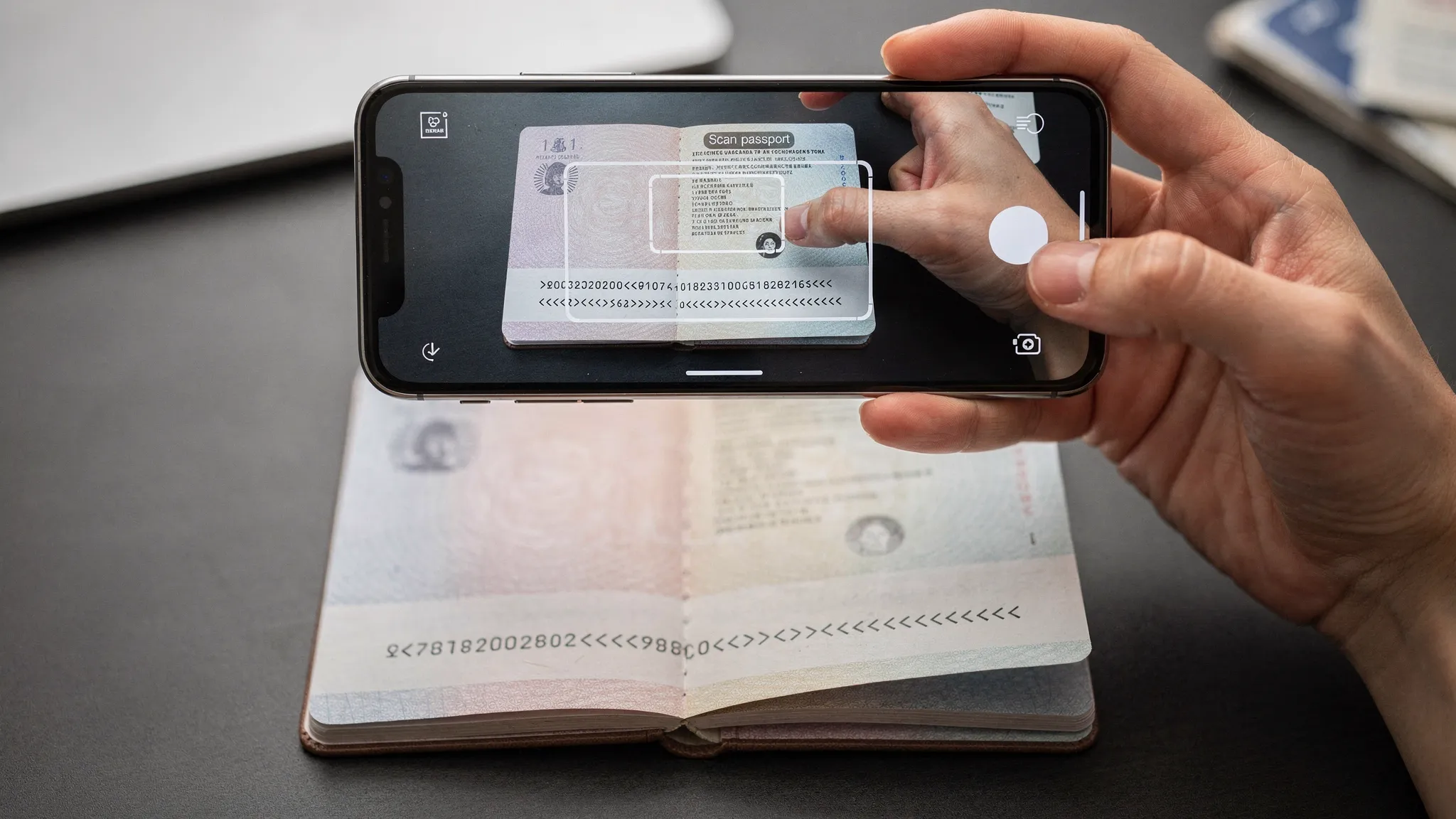
Passport OCR can feel “solved” until you look at the error logs. In travel flows, a single MRZ (Machine Readable Zone) misread can cascade into a failed eVisa application, a name mismatch with a ticket, or a manual support case that wipes out the margin on the booking.
This guide breaks down the most common MRZ OCR failure modes and the practical techniques that consistently improve passport OCR accuracy, from camera capture UX to validation logic and operational QA.
Why MRZ misreads happen (even with good OCR)
The MRZ is designed for machine reading, but it is still read from a photo taken in uncontrolled conditions. Most failures come from a few predictable sources:
- Image quality issues: motion blur, shallow depth of field, glare from the laminate, low light noise, compression artifacts.
- Geometry issues: perspective distortion (passport not flat), partial cropping, MRZ lines not fully visible.
- Font and character ambiguity: MRZ is typically printed in OCR-B, where some glyphs are inherently easy to confuse.
- Parsing mistakes: OCR output is “almost right”, but the system assigns characters to the wrong field, line, or document type.
- Weak downstream validation: without check-digit and plausibility checks, small errors slip through and only surface later.
If you want a refresher on MRZ structure, document types (TD1/TD3), and check digits, ICAO’s MRTD specifications (Doc 9303) are the canonical reference for MRZ formatting and validation rules (ICAO MRTD overview).
The MRZ character confusions that drive most errors
In production, you will usually see the same substitutions over and over. Designing your pipeline around these pairs delivers outsized gains.
| Common confusion | Typical cause | Why it matters | Best mitigation |
|---|---|---|---|
| O ↔ 0 | glare, blur, low resolution | breaks passport number and check digits | higher shutter speed, better binarization, check-digit guided correction |
| I ↔ 1 | thin strokes, sharpening artifacts | breaks dates and document numbers | enforce numeric-only fields, check-digit validation |
| S ↔ 5 | compression, low contrast | breaks document number/check digit | adaptive thresholding + strict field constraints |
| Z ↔ 2 | perspective distortion | breaks check digits and nationality codes | deskew/perspective correction + parsing constraints |
| B ↔ 8 | blur and over-sharpening | breaks check digits | quality gating and rescan prompts |
| < ↔ K/V/Y (or dropped) | low contrast on filler | shifts field positions | MRZ line length enforcement, fixed-width parsing |
A key point: the MRZ is fixed-width. If you accept variable-length lines or “best effort” parsing, errors multiply.
Start with capture UX: the cheapest accuracy win
Before changing OCR models, fix the input. Travel brands often spend months improving OCR while leaving obvious capture friction in place.
Use real-time quality gates (not just “take a photo”)
The best MRZ capture flows behave like a “scanner”, not a camera. Common quality gates include:
- MRZ fully in frame (both lines for passports, or all lines for ID cards)
- Sharpness threshold (variance of Laplacian is a common heuristic)
- Glare detection (high-saturation streaks or clipped highlights over the MRZ region)
- Low tilt (estimate perspective, reject if corners suggest steep angles)
- Minimum MRZ pixel height (prevents tiny MRZ text on wide shots)
| Quality gate | What it protects against | Typical user message |
|---|---|---|
| MRZ not fully visible | truncation, wrong line length | “Move closer so the full MRZ is visible.” |
| Low sharpness | motion blur, focus misses | “Hold steady and tap to focus on the MRZ.” |
| Strong glare | washed-out characters | “Tilt the passport slightly to remove glare.” |
| Too much perspective | warped glyphs | “Place passport flat and align with the frame.” |
| MRZ too small | misreads from low resolution | “Move closer to fill the box with the MRZ.” |
This approach reduces “silent failures”, where OCR returns plausible text that is subtly wrong.
Control the camera settings if you can
If you own the capture component (SDK/app/web), small camera controls matter:
- Prefer continuous autofocus with a focus point near the MRZ.
- Enable torch in low light (but watch glare). Offer a “torch on/off” toggle.
- Reduce motion blur by allowing a higher shutter speed (within platform limits).
- Avoid over-aggressive post-capture compression.
Teach users what “good” looks like
Short, contextual microcopy outperforms long instructions. For example:
- “Use a dark background.”
- “Avoid reflections on the bottom lines.”
- “Don’t crop the lines with <<<<.”

Pre-processing: make the MRZ look like the training data
MRZ OCR accuracy improves when the MRZ region is normalized before recognition.
The pre-processing steps that usually help MRZ OCR
- Detect and crop the MRZ region (reduce background clutter).
- Perspective correction (warp to a rectangle if the passport is angled).
- Deskew (rotate so text baselines are horizontal).
- Contrast normalization (CLAHE can help on uneven lighting).
- Binarization (adaptive thresholding is often better than global thresholding).
- Noise removal (light denoise to reduce sensor noise).
Be careful with sharpening. Over-sharpening can turn “O” into something closer to “0” by exaggerating edges.
Avoid “general document OCR” defaults
General OCR pipelines sometimes assume proportional fonts or multi-language text blocks. MRZ is different:
- It is uppercase A–Z, 0–9, and <.
- It has strict line lengths.
- It has a known field layout and check digits.
A MRZ-specialized recognizer plus MRZ-aware parsing beats a generic OCR engine in most production scenarios.
Parsing and validation: where accuracy is often truly won
Even strong OCR will output occasional wrong characters. Your job is to catch and correct them reliably.
Enforce document type templates
At minimum, determine whether the MRZ matches a known template (for example, passport TD3 uses two lines of 44 characters).
If line lengths are wrong, stop early and request a rescan instead of trying to “repair” the string.
Use check digits to detect and locate errors
ICAO MRZ includes check digits for key fields (document number, date of birth, expiration date, and sometimes a composite check digit). The check digit is calculated using a weighted sum (7-3-1 repeating) modulo 10.
Practical use:
- If the OCR output fails a check digit, you know the MRZ is wrong.
- If you validate subfields separately, you can narrow down where the error is (document number vs date).
| Validation rule | Catches | What to do when it fails |
|---|---|---|
| Line length exact match | cropping, wrong MRZ type | force rescan |
| Allowed charset only | stray symbols, OCR hallucinations | force rescan or re-OCR MRZ crop |
| Field-level check digits | single-character mistakes | attempt targeted correction or ask user to confirm flagged characters |
| Date plausibility (DOB < expiry) | swapped digits, bad parsing | ask user to rescan, highlight date fields |
| Issuing country/nationality code format | misreads in codes | apply code list constraints and re-run parsing |
Add constrained correction, but keep it explainable
A robust approach is “validate, then correct only when confidence is high”. Examples:
- If a numeric-only field contains “O”, replace with “0” and re-check.
- If the document number check digit fails and the OCR confidence is low for one character, try a small set of substitutions for that character only.
Avoid broad brute-force corrections across the entire MRZ. That can create false positives and may be hard to defend in audits.
UX for correction: make the user confirm the right thing
When MRZ misreads happen, the worst experience is forcing users to retype everything on mobile.
Better pattern:
- Show extracted fields (name, document number, DOB, expiry).
- If validation fails, highlight only the suspect field(s).
- Provide a “rescan MRZ” option that returns users to capture immediately.
A subtle but important detail: if users do manually edit, consider offering the MRZ view and encouraging them to copy from the MRZ rather than the visual zone. That reduces mismatches caused by diacritics or formatting differences.
Operational monitoring: measure misreads like a product team
MRZ OCR accuracy improvements stick when you treat them like a funnel with instrumentation.
Metrics worth tracking
| Metric | Why it matters | Typical segmentations |
|---|---|---|
| MRZ scan success rate | top-line quality indicator | device model, OS, browser, country |
| First-pass read rate | shows capture + OCR strength | iOS vs Android, camera permissions |
| Validation fail rate | catches OCR drift and new templates | passport issuer, capture locale |
| Rescan rate | indicates UX friction | by step, by error reason |
| Manual edit rate | proxy for OCR pain | by field (document no., DOB, expiry) |
Keep labeled error examples
Store privacy-safe artifacts where possible:
- MRZ crop images (or encrypted references)
- OCR raw output + per-character confidence
- Validation outcomes (which check digit failed)
This is how you build a feedback loop for model tuning and better capture rules.
Security and fraud note: accuracy and integrity are connected
MRZ errors are not always “accidental”. Some are caused by altered images, screenshots, or synthetic document artifacts.
Common integrity checks include:
- Rejecting obvious screenshots (pixel patterns, missing camera noise).
- Detecting re-captured images (moiré, banding, display artifacts).
- Ensuring you only accept images with the expected MRZ structure and check digits.
In adjacent parts of travel compliance, teams may also evaluate whether traveler-provided supporting statements look autogenerated. If you are benchmarking that class of checks, resources like this directory of AI text detection evaluation tools can help you understand how “pass/fail” detectors behave in practice (Detection Drama).
Where this fits in an online visa processing flow
For travel businesses, better passport OCR accuracy is not just a technical win, it directly impacts conversion and support load:
- Fewer form abandons because fields are pre-filled correctly.
- Fewer “name mismatch” issues that block ticketing or eVisa submission.
- Fewer manual interventions and faster time-to-approval.
SimpleVisa’s broader focus is travel document automation and guided applications. If you are designing an end-to-end flow (capture, validation, application completion, status tracking), it can help to place MRZ OCR in that bigger system context. Related reading:
- What Is Travel Document Automation? Definitions, Benefits, and Myths
- Handling Name Mismatches on Tickets, Passports, and eVisas: Fixes and Prevention
- The Complete Glossary of Electronic Visa Terminology
A practical “MRZ misread minimization” checklist
Use this as a final sanity check when you are auditing your pipeline.
Capture
- MRZ framed with a dedicated overlay and real-time feedback
- Sharpness and glare gating before accepting the photo
- Minimal compression and a guaranteed minimum MRZ resolution
OCR and parsing
- MRZ region detection, deskew, and perspective correction
- MRZ-specific OCR model or configuration (restricted charset)
- Strict template parsing by document type and line length
Validation and recovery
- Field-level check digits and composite check digit validation
- Plausibility rules (dates, formats, code constraints)
- Rescan-first UX, targeted manual correction only when necessary
Monitoring
- Instrumentation for success, rescan, and manual edit rates
- Error logging that ties validation failures to capture conditions
- Regular reviews by issuer country, device family, and integration surface (web vs app)
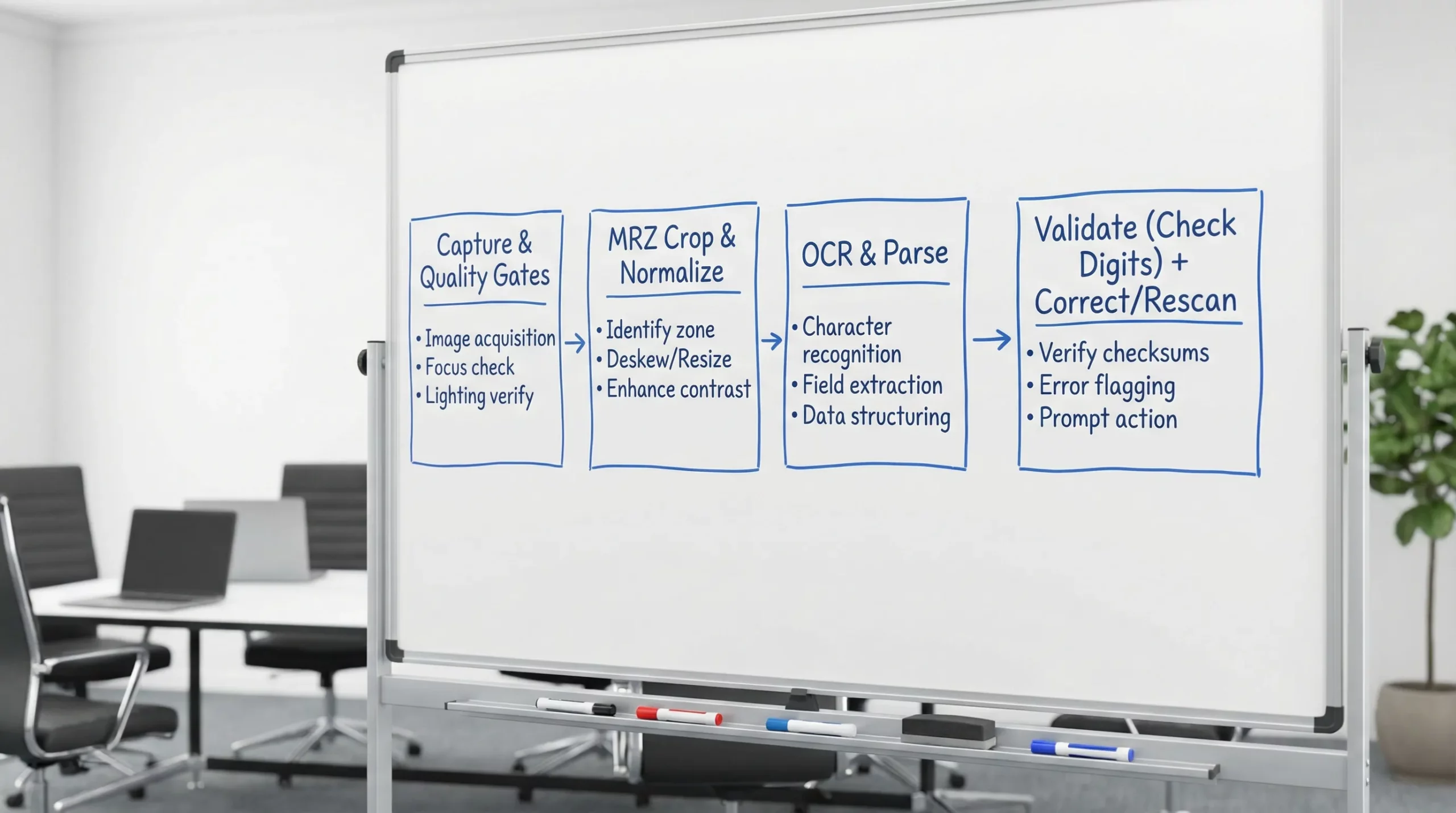
When MRZ OCR is treated as a complete system (capture, normalization, recognition, validation, recovery, monitoring), teams typically see dramatic reductions in misreads without needing unrealistic “perfect OCR” assumptions. The MRZ was designed to be validated, use that design to your advantage.