Travel Visa Help: 9 Fixes for Delays, Errors, and Rejections

Visa problems rarely happen at a convenient time. One small typo, an unreadable passport scan, or a payment that never confirms can turn a simple trip into a chain of delays, errors, and even rejections.
This guide is travel visa help you can use immediately, with nine practical fixes that cover the most common failure points in online visas, eVisas, and travel authorizations (like ETAs). Use it as a troubleshooting playbook whether you are a traveler applying yourself, or a travel team supporting customers.
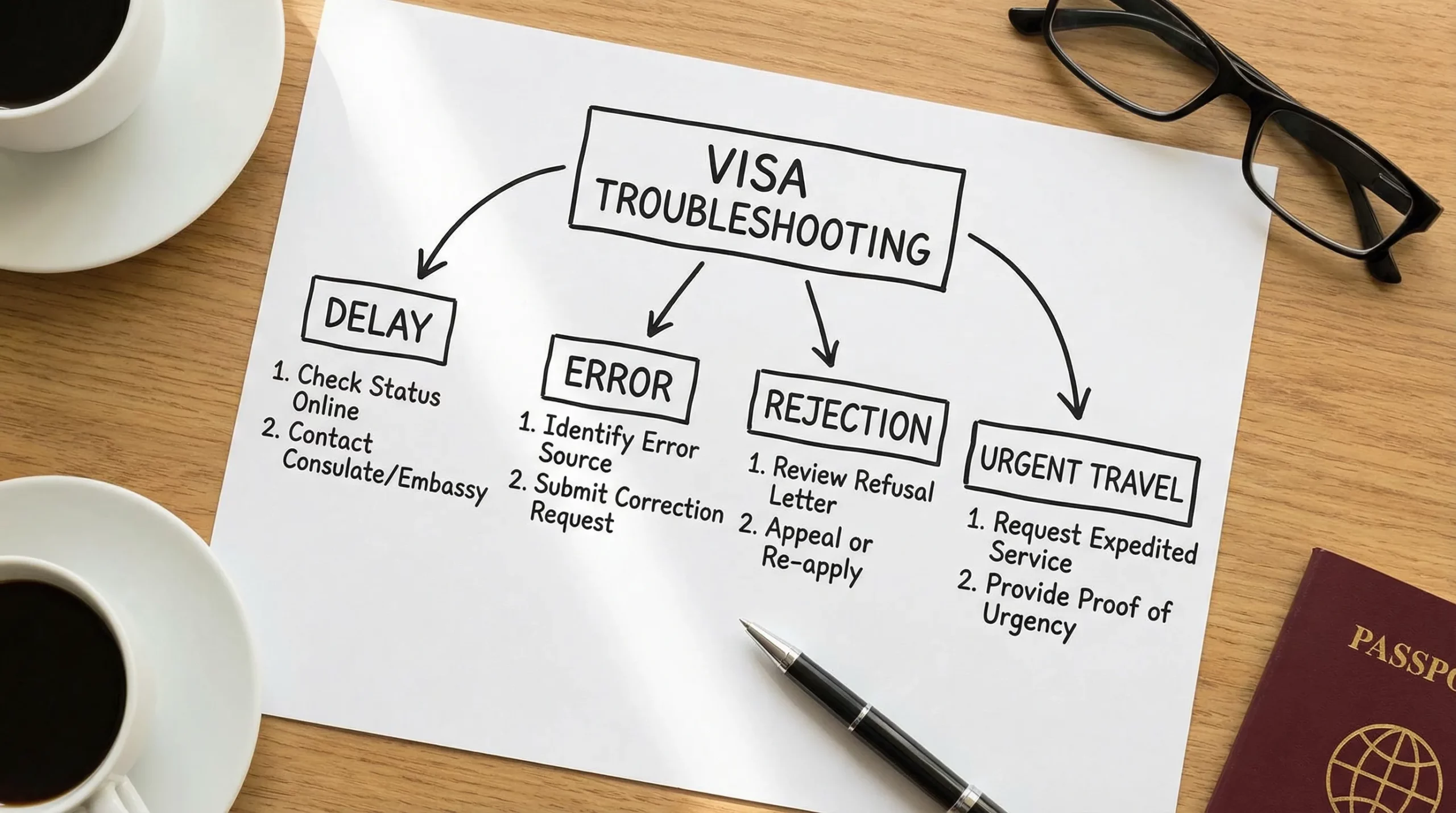
First, identify what you are dealing with (delay, error, or rejection)
Different issues have different “fastest paths” to resolution. Start by classifying the problem and collecting the right evidence before you contact anyone.
| What you see | Most likely meaning | What to do first | What to save as proof |
|---|---|---|---|
| Status stuck on “processing” | Normal queue, manual review, or a missing step | Re-check email inbox and portal messages, confirm payment, confirm uploads | Payment receipt, submission ID, screenshots of status |
| “Invalid document” or “upload failed” | File format, size, glare, cropping, or wrong document type | Re-export to JPG/PDF, re-scan, follow exact specs | Original file, new file, error message screenshot |
| “Details don’t match” | Name/DOB/passport number mismatch | Compare against passport MRZ, correct and resubmit if allowed | Passport bio page, MRZ photo, application copy |
| Payment failed but card charged | Authorization hold or partial capture | Check receipt and portal status, then contact provider | Card statement line, transaction ID, timestamp |
| “Refused/denied” | Eligibility, risk checks, incorrect category, or inconsistent info | Read refusal notice carefully, determine if reapply or appeal | Refusal letter, application copy, supporting docs |
Fix 1: Confirm you applied in the right place (and not a lookalike site)
A surprisingly high number of “delays” are actually one of these situations:
- The application was started on one site and finished on another.
- The traveler used a third-party page that is not the official portal and provides no real tracking.
- Emails are coming from a different domain than expected, and the traveler never sees a document request.
What to do:
- Find the submission reference number (or application ID). If you do not have one, that is a red flag.
- Search your inbox for the destination name plus “visa”, “evisa”, “eta”, “authorization”, “payment receipt”, and your travel date.
- If you are unsure which government entity runs the program, start from an official directory. For example:
- U.S. ESTA is handled through U.S. Customs and Border Protection (CBP) and can be verified via the official ESTA site.
- The EU’s ETIAS information is published on the official EU ETIAS page.
- The UK publishes ETA updates on GOV.UK.
If you want a safety framework for online applications (especially to avoid scams), see SimpleVisa’s guide on travel visa online: how to apply safely.
Fix 2: Check passport validity, condition, and “data entry exactness”
For online visas and authorizations, your passport is both your identity document and your “database key.” Problems here trigger delays and denials.
Common passport-related blockers:
- Passport expires too soon for the destination’s rule.
- Passport number entered incorrectly (a single character off).
- Passport issued date and expiry date swapped.
- Passport bio page scan is cropped, blurry, or has glare.
- You applied with one passport, then plan to travel with another (common with dual citizens).
Fast fix:
- Re-enter passport details by copying from the MRZ (the two lines of characters at the bottom of the passport bio page), not from the top lines. The MRZ is what systems are designed to read consistently.
- Re-scan the passport bio page in bright, indirect light, flat on a dark surface, with all corners visible.
- If your passport was renewed after you applied, assume you may need to reapply or transfer depending on the destination.
If you have dual citizenship, be extra careful about which passport you select and stick to it end-to-end. SimpleVisa has a dedicated guide for navigating eVisa rules for dual citizens.
Fix 3: Resolve name mismatches (passport vs ticket vs visa) before anything else
If there is one issue that can wreck an otherwise valid approval, it is a mismatch between:
- The name on the passport
- The name on the booking (PNR)
- The name on the eVisa/eTA/ETA
Even small differences can matter, like missing middle names, reversed surnames, hyphens, apostrophes, or spacing.
Fast fix:
- Match the visa application name to the passport exactly as shown in the MRZ.
- If the visa is already issued with the wrong name, do not “hope it is fine.” Check whether the destination allows a correction, an amendment, or requires a reapplication.
- If the airline ticket is wrong, change the ticket to match the passport (or follow the airline’s correction process) as early as possible.
For a deeper, step-by-step set of remedies, use Handling Name Mismatches on Tickets, Passports, and eVisas.
Fix 4: Rebuild your uploads (photos and scans) to meet strict technical specs
A large share of “errors” are not immigration decisions, they are document validation failures. Many portals run automated checks, and the system will reject files that a human could still understand.
Typical upload issues:
- Wrong file type (HEIC from iPhone is a frequent problem).
- File too large or too small.
- Low resolution, heavy compression, or blur.
- Shadows on a passport photo, wrong background, or face not centered.
- Combined PDFs where the portal expects separate files.
Fast fix:
- Convert HEIC to JPG and ensure a clean export.
- Use a simple naming convention like
PASSPORT.jpg,PHOTO.jpg,HOTEL.pdf. - If the portal specifies dimensions or file size, follow them exactly.
If you want to prevent these problems before submission, SimpleVisa’s visa application checklist and the online visa submission checklist are good pre-flight checks.
Fix 5: Correct “inconsistencies” across your form and supporting documents
Rejections (and manual-review delays) often come from contradictions, not from missing documents. Examples:
- Employment status in the form does not match the letter provided.
- Dates on the itinerary conflict with dates entered in the application.
- You selected “tourism” but attached business invitations.
- Your stated purpose of travel does not match the visa type.
Fast fix:
- Print (or export) a copy of your submitted answers and compare line-by-line to your documents.
- Align three anchor points everywhere: dates, purpose, identity details.
- If you are still drafting, use one “master itinerary” document and copy from it.
If you suspect you chose the wrong category, stop and re-check the program definitions (eVisa vs eTA vs consular visa). SimpleVisa covers the differences in 5 key differences between electronic visas and eTAs.
Fix 6: Fix payment issues (failed charges, missing receipts, or “paid but not submitted”)
Payment problems cause confusion because card behavior and portal behavior do not always synchronize.
Common scenarios and what they mean:
- Card charged, but portal says unpaid: could be an authorization hold, or the portal never received confirmation.
- Portal says paid, but no email: check spam, then log in and confirm a submission ID exists.
- Multiple charges: could be retries, or one failed and one captured.
Fast fix:
- Look for an official receipt inside the portal, not just an email.
- Save the transaction timestamp, amount, and any payment reference.
- If the portal supports it, avoid repeated retries without guidance, it can create duplicate records.
If the visa provider or travel brand has a support channel, contact them with a single message that includes:
- Full name (as in passport)
- Passport number (only if the channel is secure)
- Application ID
- Travel date
- Payment evidence
Fix 7: Clear technical portal errors (timeouts, freezes, “can’t submit”) with a clean setup
When an application will not submit, treat it like a secure checkout problem.
Fast fix checklist:
- Try a different browser (Chrome or Safari are usually safest for government portals).
- Use a laptop or desktop if mobile upload is failing.
- Disable ad blockers and privacy extensions for the session.
- Switch networks (avoid public Wi-Fi for sensitive uploads).
- Ensure your device clock is correct (some secure sessions fail when clocks drift).
If the portal allows it, log out fully and start a fresh session. If it does not allow it, capture screenshots of the error and timestamp.
Security note: only upload sensitive identity documents on HTTPS pages and avoid sending passport scans over unsecured email. SimpleVisa’s security-oriented guidance is summarized in 9 essential security tips for electronic visa applications.
Fix 8: Break “processing delays” with the right escalation path (without making it worse)
Not all delays are abnormal. Many systems process most cases quickly and route a minority to manual review, additional screening, or document verification.
Use this escalation ladder:
Step 1: Make sure you did not miss a request
Some portals ask for additional documents inside the account dashboard and also send an email. Check both.
Step 2: Validate your timeline against the program’s guidance
Some programs publish target timeframes and advise applying a minimum number of days before travel. When in doubt, build buffer.
Step 3: Use an official status check tool if available
Example: ESTA has an official status check on its CBP site.
Step 4: Contact support with a “complete packet”
Support teams can only act quickly if you provide the essentials in one go:
- Application ID
- Applicant identity (as entered)
- Travel date
- Current status screenshot
- Any error code
If you are using SimpleVisa via a partner travel site and need urgent help, the fastest way to get routed correctly is to follow Visa Contact Us: Get Instant Support.
Step 5: Avoid risky last-minute workarounds
Do not submit multiple duplicate applications unless the program explicitly recommends it. It can trigger fraud flags or create conflicting records.
Fix 9: If you were rejected, decide whether to reapply, appeal, or change travel plans
A rejection is frustrating, but it is not always the end of the road. The right next step depends on the reason.
If the rejection is clearly an error you can correct
Examples: wrong passport number, wrong document uploaded, wrong category chosen.
- Correct the error.
- Reapply only if permitted.
- Keep your story and documentation consistent with the original trip.
If the rejection is eligibility-based
Examples: nationality restrictions, prior immigration violations, security-related ineligibility, or answers that trigger mandatory refusal.
- Do not “guess” at a new set of answers. Inconsistent reapplications can make things worse.
- Consider whether a different visa type (often a consular visa) is required.
- For complex cases, consult qualified immigration counsel.
If you received a request for more information and missed the deadline
- Respond as soon as possible if the case is still open.
- If it is closed, determine whether a fresh application is allowed and what changed.
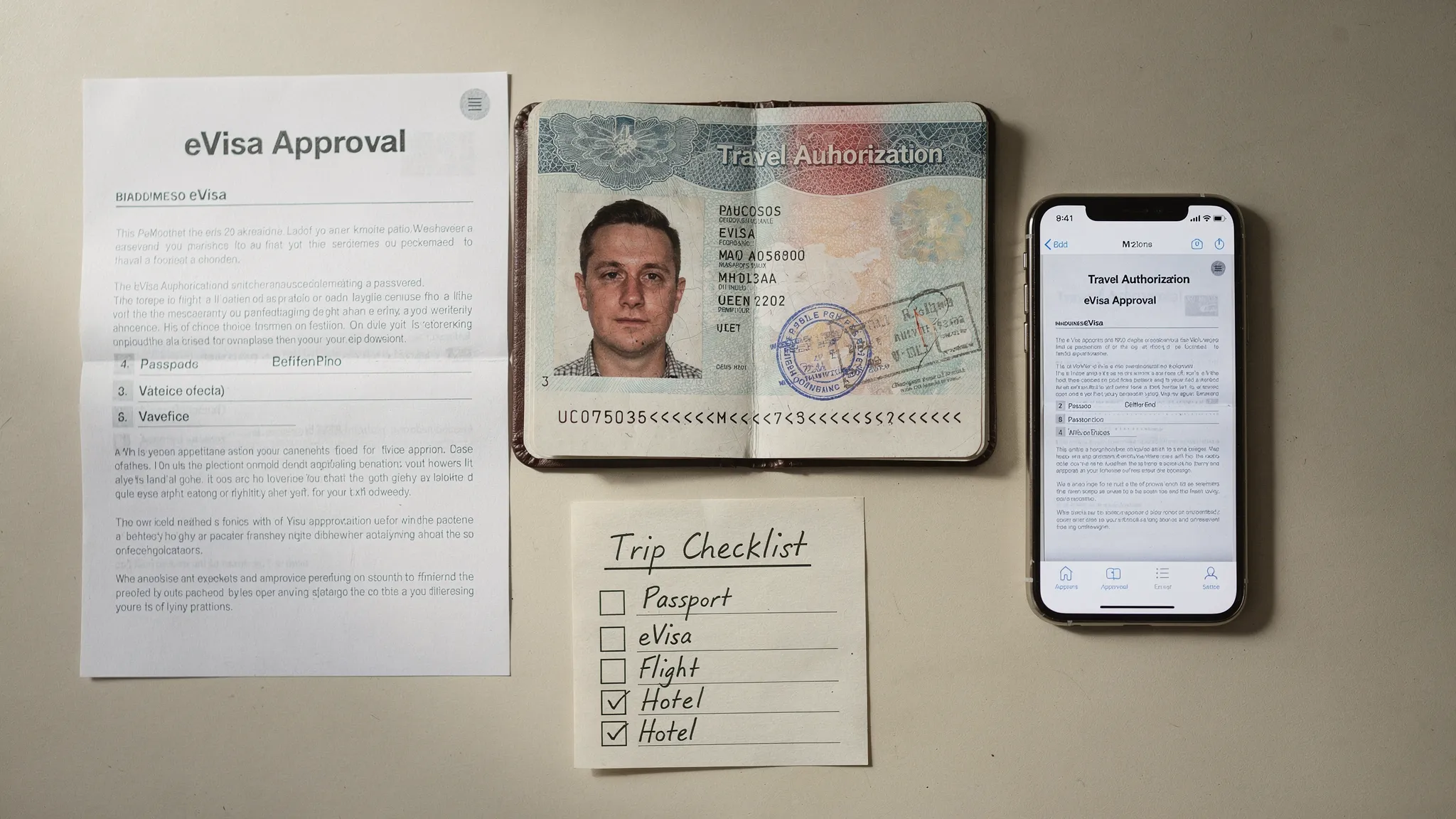
Practical note: even after approval, entry is typically determined at the border. Carry a simple “border packet” (digital and printed) with your approval notice, hotel details, onward ticket, and proof of funds if relevant.
A quick prevention routine that avoids most visa issues
If you want fewer problems next time, use this 10-minute routine before every submission:
- Copy names and passport details from the passport MRZ.
- Verify passport expiry against destination rules.
- Prepare clean files (JPG/PDF), readable scans, no glare.
- Keep one master itinerary and ensure all dates match.
- Save confirmation pages, payment receipts, and application IDs in one folder.
For a more comprehensive prep workflow, see Electronic Visa: Common Mistakes to Avoid When Applying.
Frequently Asked Questions
What is the most common reason an online visa application is delayed? Missing document requests, upload failures, and manual review queues are common. Start by checking your portal dashboard and inbox for requests.
Can I fix a typo after I submit my application? Sometimes. Some programs allow edits while the application is pending, others require a new application. Check the destination’s rules and do not submit duplicates unless recommended.
Why does my payment show as charged but the application is not submitted? Many systems place a temporary authorization hold even if submission fails. Confirm in the portal whether you have a receipt and application ID, then contact support with the transaction details.
Will an approved eVisa or ETA guarantee entry? Usually not. Approval typically grants permission to travel, but final admission is decided by border officers. Carry supporting documents that match your stated purpose.
What should I do if my visa is rejected close to departure? Read the refusal reason, then decide whether a corrected reapplication is allowed, a different visa type is required, or you need to change your itinerary. Avoid “guessing” new answers.
How do I avoid name mismatches between my ticket and visa? Use your passport MRZ as the source of truth for names, and keep the same passport and spelling across booking, visa application, and travel documents.
Need travel visa help at scale (for a travel brand or agency)?
If you are a travel company supporting customers, visa errors and delays are more than inconvenience, they create support tickets, chargebacks, and missed departures.
SimpleVisa helps travel businesses streamline visa applications with guided customer flows, visa processing automation, and flexible deployment options including API integration, a white-label visa application app, and no-code implementation.
Explore SimpleVisa at simplevisa.com and, if you need fast assistance for an active case, start with SimpleVisa support guidance.